
Confirm the provider account
Make sure Discord or Telegram shows Connected on Pattern Horizon and that it is the account you intended to use.
Article
A simple step-by-step guide to connecting Discord and Telegram, checking that each account is linked, and enabling signal delivery for the symbols you use.
Connection guide
Pattern Horizon can optionally deliver signal updates through Discord, Telegram, or both. Connecting an account does not place trades, control a brokerage account, or enable every symbol automatically. It links your Pattern Horizon account to the selected communication service so that you can choose delivery for eligible symbols under your current plan.
Before you begin, sign in to Pattern Horizon and open the Set up Discord and Telegram page. Make sure you can also sign in to the Discord or Telegram account you want to connect. On a phone, keep the relevant app installed and available because the provider may ask you to approve the connection there.
The two sections below are independent. If you only use Discord, complete the Discord steps. If you only use Telegram, go directly to the Telegram steps. You can connect both and choose the delivery channel separately for each symbol.
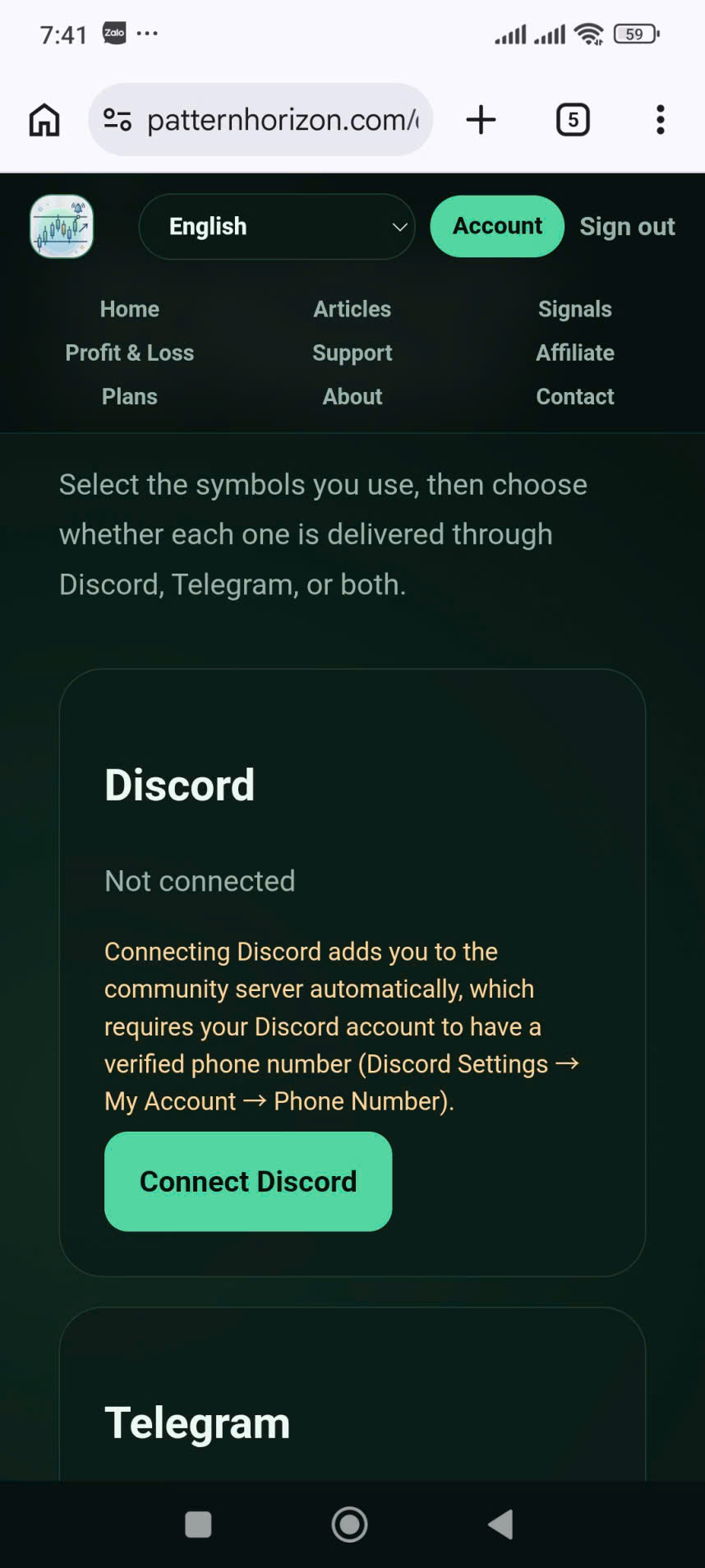
Discord · Step 1
In your Pattern Horizon account, open Set up Discord and Telegram. The Discord card shows whether an account is connected. If it says Not connected, read the notice and select Connect Discord.
Pattern Horizon adds an authorized user to the community server automatically. Your Discord account therefore needs a verified phone number. If it is not verified, open Discord Settings → My Account → Phone Number, complete verification, and then return to Pattern Horizon.
Use your own Discord account. Do not connect a shared account, and do not approve the request if the browser displays an account you do not recognize.
Open connection settings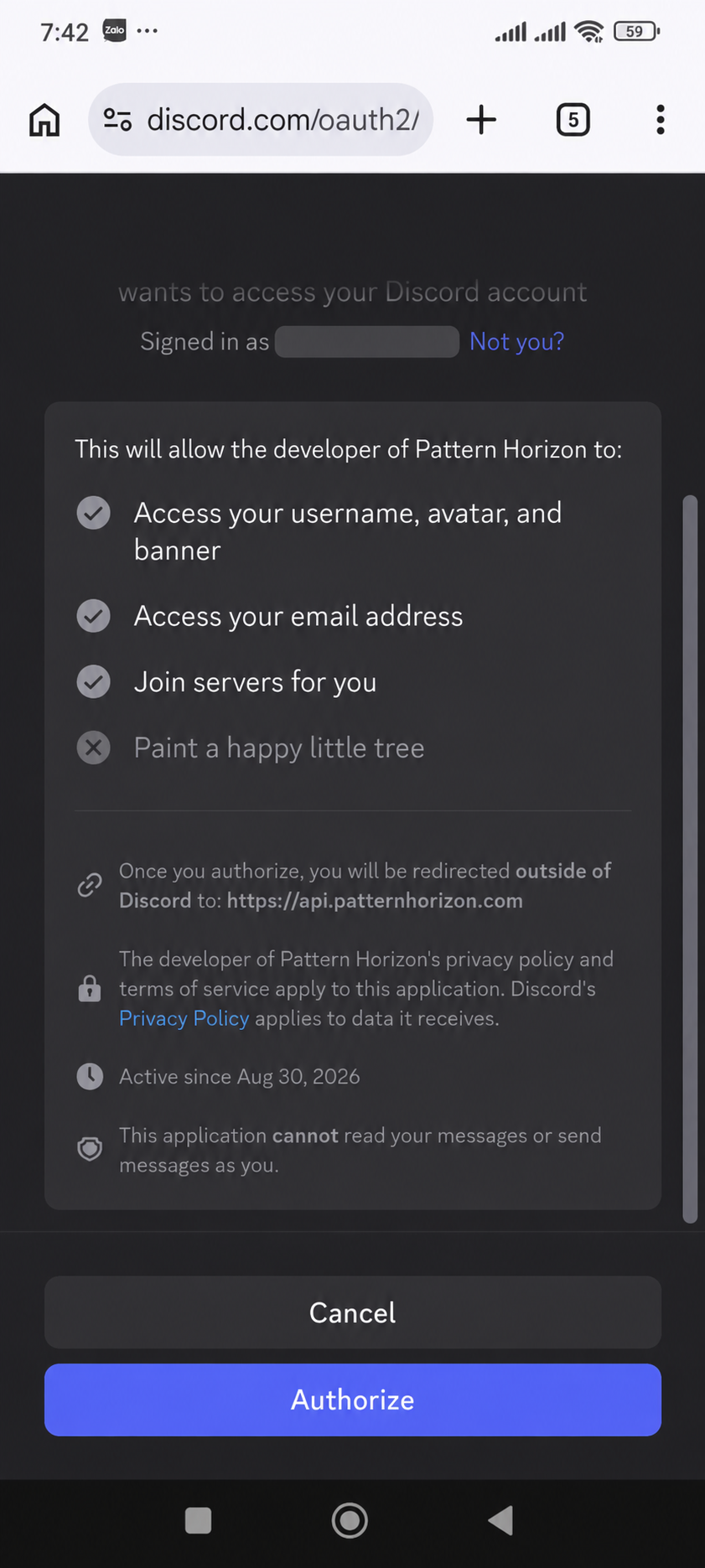
Discord · Step 2
Discord opens its authorization screen. Confirm that the page is on discord.com, that you are signed in to the intended account, and that the application is Pattern Horizon.
The authorization screen explains the requested access. It may include access to basic profile information and email, plus permission to join the Pattern Horizon community server for you. The screen also states that the application cannot read your messages or send messages as you. Review the current permission list shown by Discord rather than relying only on this example, because provider wording can change.
If everything is correct, select Authorize. Select Cancel if the account or permissions are not what you expect. Never enter your Discord password directly on Pattern Horizon; authentication is completed on Discord's own page.
Read the Privacy Policy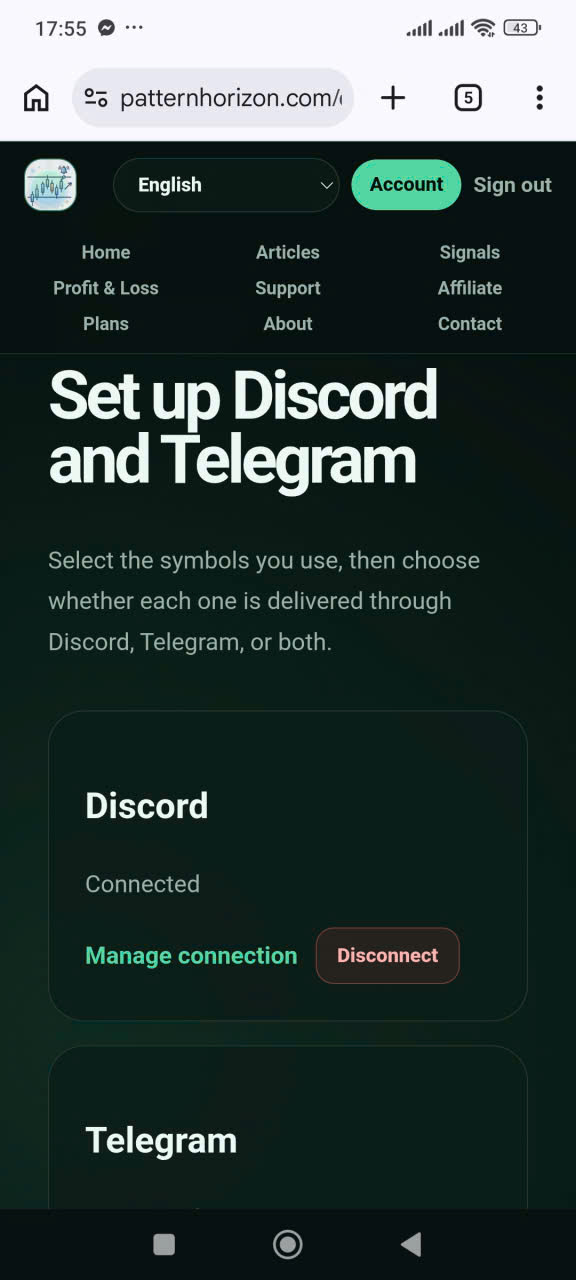
Discord · Step 3
After authorization, Discord redirects you to Pattern Horizon. The Discord card should now display Connected and show Manage connection and Disconnect controls. This confirms that the external account link has been recorded.
If the card still says Not connected, refresh the page once and check whether an error message appears. A phone-verification warning means that the Discord account may be linked but automatic community access could not be completed. Verify the phone number in Discord and reconnect.
Connecting the account is only the first stage. Signal delivery is configured per symbol in the table below the connection cards.
Manage account connections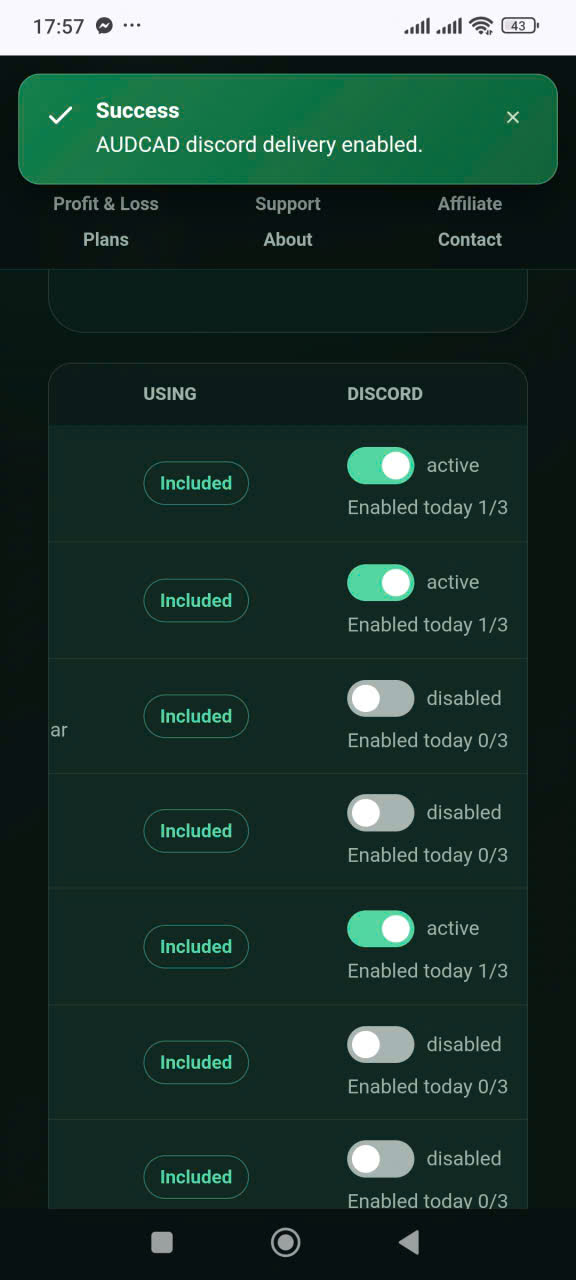
Discord · Step 4
Scroll to the symbol-delivery table. Find an included or selected symbol and switch on its Discord control. A success notice confirms that delivery has been enabled. Repeat the step for other eligible symbols you want to follow.
A connected Discord account does not mean that every switch is active. Each symbol keeps its own delivery preference. Availability depends on your plan, selected-symbol allowance, current account access, and any displayed change or cooldown rule.
To stop Discord delivery for one symbol, turn off that symbol's Discord switch. To remove the external account link entirely, use Disconnect in the Discord card. These are different actions: disabling a symbol changes delivery for that symbol, while disconnecting removes the provider connection.
Learn how to read delivered signalsDiscord troubleshooting
First check that the Discord account has a verified phone number and that you authorized the intended account. Then return to Pattern Horizon and confirm that the Discord card says Connected. If community access synchronization is delayed, wait briefly and try again rather than repeatedly authorizing several accounts.
If the account is connected but a symbol receives no messages, verify that the symbol is available under your plan and that its Discord switch is active. Also check Discord notification settings, muted channels, server visibility, and the account currently open in the Discord app.
Disconnect and reconnect only when necessary. If the problem continues, contact Support and include the provider, approximate time, affected symbol, and the visible error message. Do not send passwords, backup codes, authentication tokens, private keys, or payment details.
Telegram · Step 1
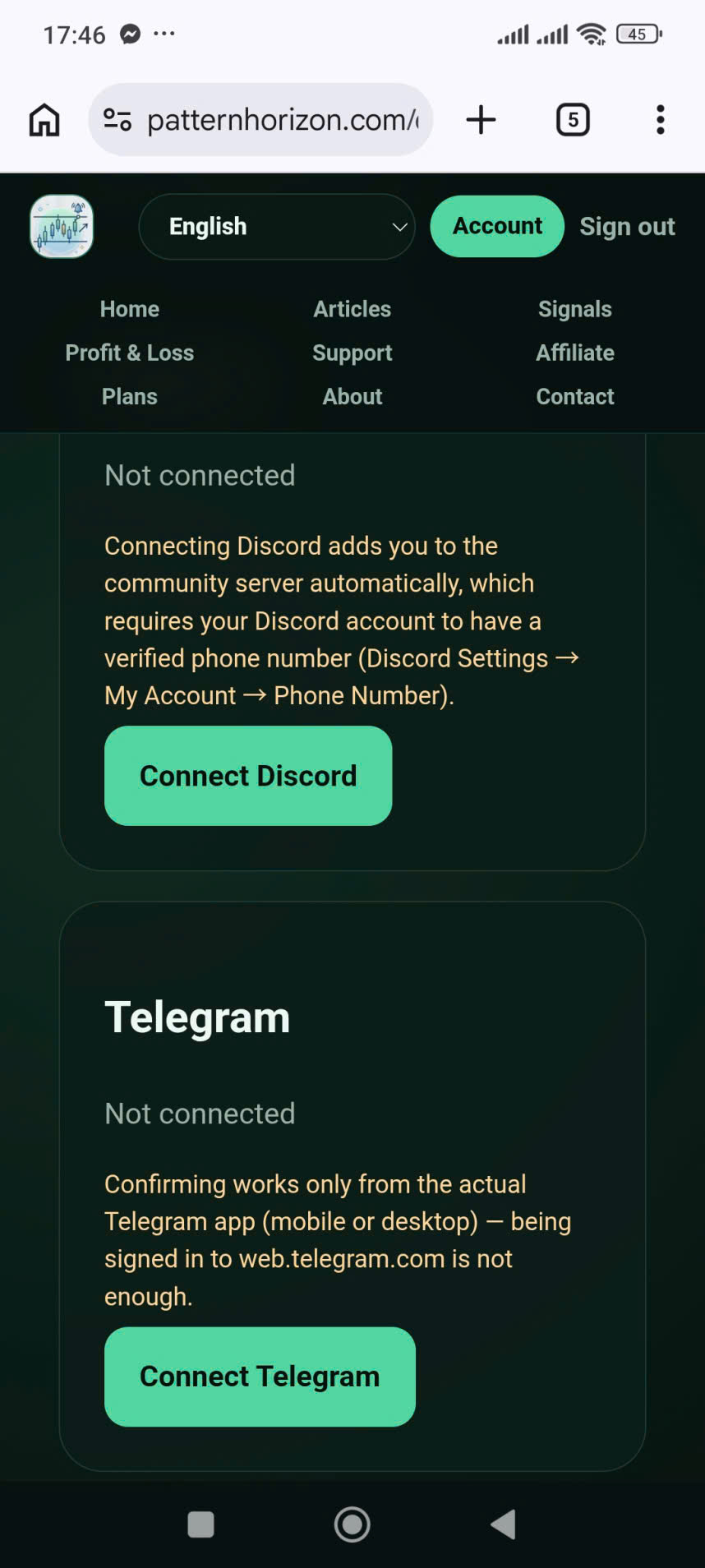
Return to Set up Discord and Telegram and find the Telegram card. If it says Not connected, select Connect Telegram.
Telegram confirmation must be completed through the actual Telegram mobile or desktop application. Being signed in only at web.telegram.com is not sufficient for this connection flow. Keep the Telegram app installed, signed in, and able to receive the confirmation request.
Use the Telegram account where you want to receive Pattern Horizon updates. If you manage several Telegram accounts, check the active profile before approving the request.
Open connection settings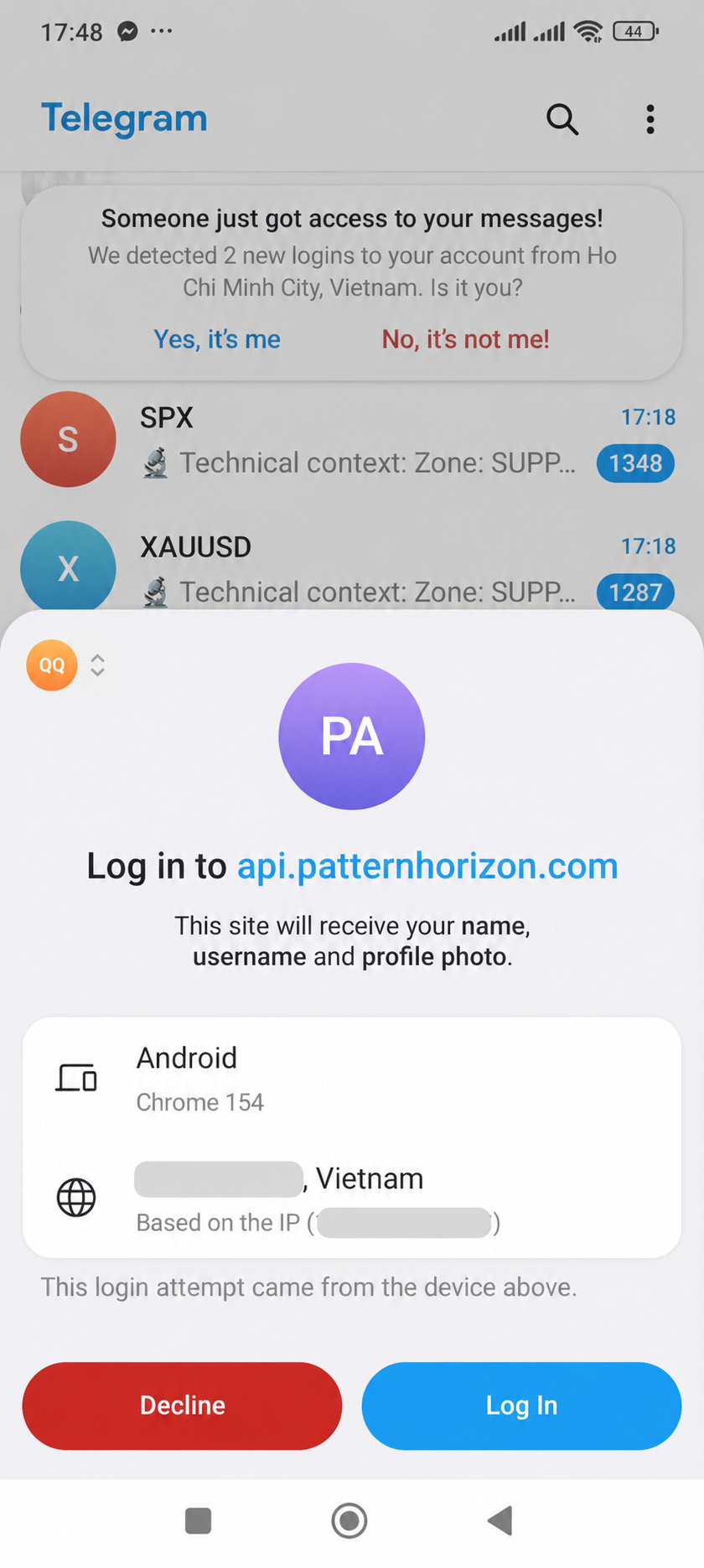
Telegram · Step 2
Telegram displays a login request for api.patternhorizon.com. Read the screen carefully. It explains that the site will receive your name, username, and profile photo. Device and location information may also be displayed by Telegram to help you recognize the request.
Confirm that you initiated the connection, that the destination is api.patternhorizon.com, and that the device shown matches the browser you are using. Select Log In only when those details are correct. Choose Decline if the request is unexpected or the device is unfamiliar.
Pattern Horizon does not need your Telegram password in its own form. Approval happens in Telegram. The example image has identifying network information redacted for privacy.
Read the Privacy Policy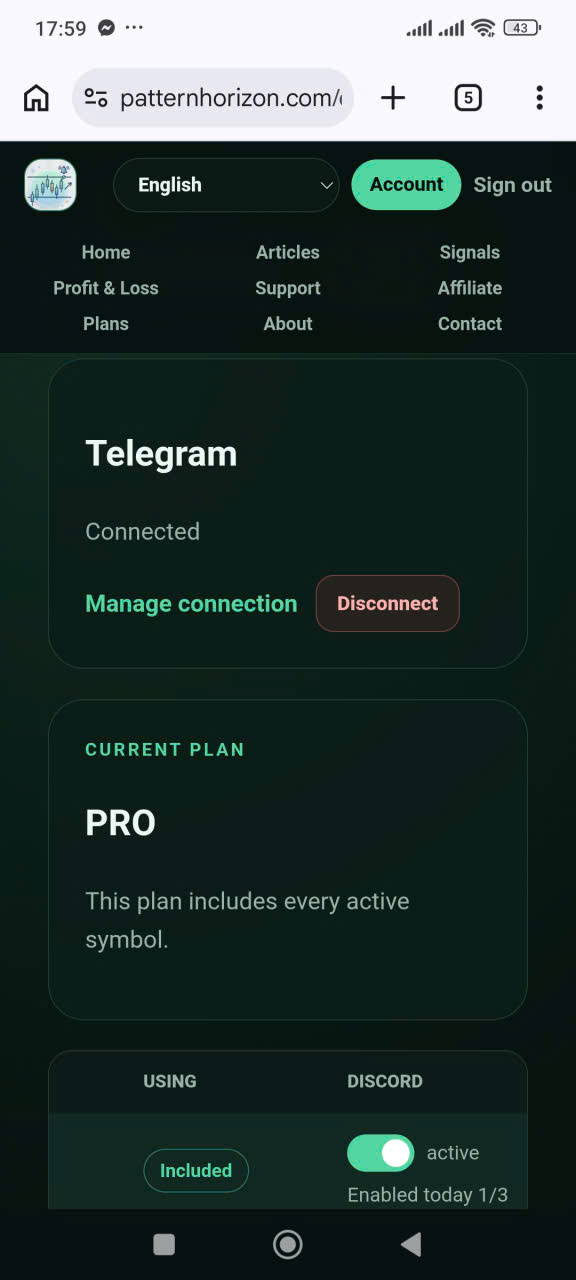
Telegram · Step 3
After approval, return to Pattern Horizon. The Telegram card should display Connected with Manage connection and Disconnect controls. This confirms that Pattern Horizon has linked the Telegram identity.
If the page remains on Not connected, return to the Telegram application and check whether the approval is still waiting. Make sure you did not approve from a different Telegram account. You can refresh Pattern Horizon once after completing the app step.
As with Discord, a connected account is not the same as active delivery for every symbol. Continue to the symbol table to choose what should be sent through Telegram.
Manage account connections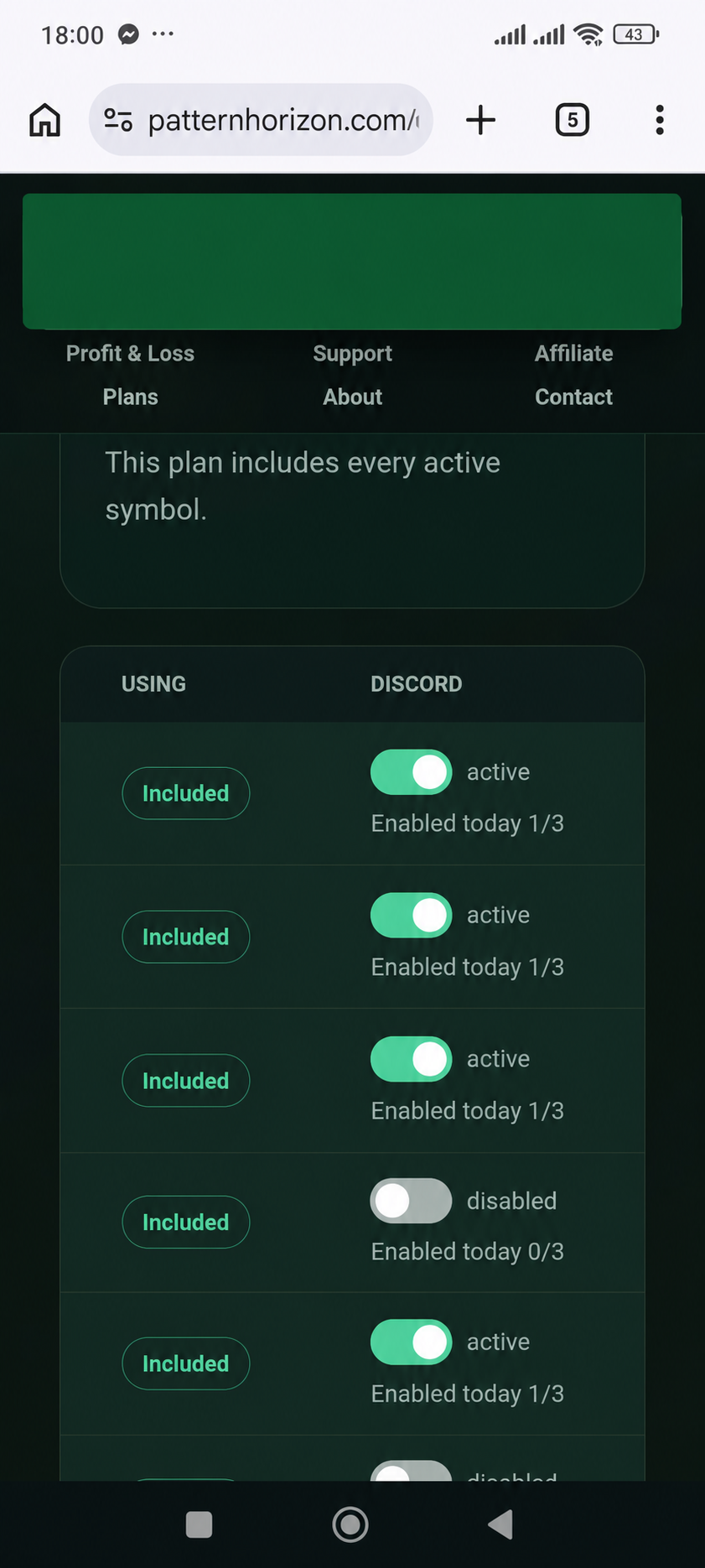
Telegram · Step 4
In the delivery table, locate the Telegram column and switch on delivery for each symbol you want. On a narrow mobile screen, the table can extend horizontally; scroll sideways if the Discord column appears first and the Telegram column is off-screen.
The illustration shows how the delivery switches look and how active and disabled states differ. The notification text has been hidden because it referred to a different channel. Always verify the actual column heading and the confirmation shown on your current page.
Turning on Telegram for one symbol does not change Discord automatically. You can use Telegram only, Discord only, both channels, or neither for each eligible symbol. If you stop using Telegram, turn off the relevant switches or disconnect the account.
Learn how to read delivered signalsTelegram troubleshooting
Use the official Telegram mobile or desktop application and confirm that it is signed in to the intended account. A browser-only Telegram session is not enough for the approval step. If the request has expired, return to Pattern Horizon and start Connect Telegram again.
When Telegram shows Connected but no update arrives, check that the symbol is available and its Telegram switch is active. Review archived chats, muted notifications, device notification permissions, and the Telegram account currently open. Delivery can also be affected by provider outages, network delays, plan access, or a signal that has not produced a new lifecycle event.
If you contact Support, include the time, symbol, connection status, and a screenshot that does not expose private conversations, phone numbers, IP addresses, login codes, or other secrets.
Quick verification
A provider is ready only when the account connection and the symbol-level delivery setting are both complete.
Make sure Discord or Telegram shows Connected on Pattern Horizon and that it is the account you intended to use.
Confirm that the symbol is included in your plan or selected within your available custom-symbol allowance.
Turn on the Discord or Telegram switch in the matching column for that symbol. Mobile users may need to scroll the table horizontally.
Verify that the success notice names the intended symbol and provider; do not assume a neighboring switch was changed.
Make sure the relevant Discord channel or Telegram conversation is visible and not muted on the device you use.
Share the provider, time, symbol, and error text, but never send passwords, login codes, tokens, private keys, or complete payment information.
Privacy and control
Discord and Telegram are independent third-party services. Their own terms, privacy policies, account-security controls, availability, and notification behavior also apply. Pattern Horizon cannot control provider outages, account restrictions, or policy changes.
Disabling a symbol's switch stops the selected delivery route for that symbol without necessarily removing the linked external identity. Disconnecting removes the provider connection and can stop delivery through that provider. Disconnecting does not automatically delete records that Pattern Horizon must retain for security, audit, dispute, or legal purposes. Review the current Privacy Policy and Terms of Service for more detail.
Channel delivery is optional. The website remains the primary place to review the latest available signal state and full context. A delayed or missing notification does not change the market, and an old notification should not be treated as the current state without checking the website.
Ready to connect?
Complete the provider connection first, then enable delivery separately for each eligible symbol.
Set up Discord and TelegramImportant information
Pattern Horizon provides market information and educational content. Discord and Telegram notifications are optional delivery methods for structured signal updates; they do not place orders, manage assets, provide copy trading, or guarantee timely delivery, accuracy, profit, or any investment outcome.
Always check the current signal state, market conditions, relevant levels, and your own risk before making a decision. Provider, device, network, and notification delays can occur.